

Summary
This article provides useful steps to install the code-signing certificate required by the Software Vulnerability Manager at WSUS to enable publishing integration between SVM and all WSUS APIs. We also listed more useful tips around certificate handling with Powershell as it is very handy to leverage PowerShell for WSUS-related certificate operations.
Synopsis
1. Open up Powershell as Administrator on your WSUS server, or Software Update Point of SCCM.
2. Run the following to set the WSUS server and its configuration to an object.
[Reflection.Assembly]::LoadWithPartialName("Microsoft.UpdateServices.Administration")
$updateServer = [Microsoft.UpdateServices.Administration.AdminProxy]::GetUpdateServer()
$config = $updateServer.GetConfiguration()
3. Next, run this snippet to set the new code signing certificate.
$config.SetSigningCertificate("<Path to pfxFile>", "<PFX file password>")
Bear in mind, this will be a file with both the public and private keys (pfx usually).
You'll need to replace the path and private key password within the placeholder values in quotes.
4. Now save the changes.
$config.Save()
Cert:\
The Powershell PSProvider "Certificate" gives the shell direct access to certificate stores of the system or the user depending on where you want to go. To get a quick glimpse of that, use this command:
Get-PSProvider
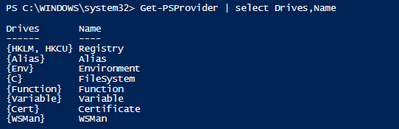
You can go about the Cert PSProvider as you do basic filesystem browsing using dir (Get-ChildItem):

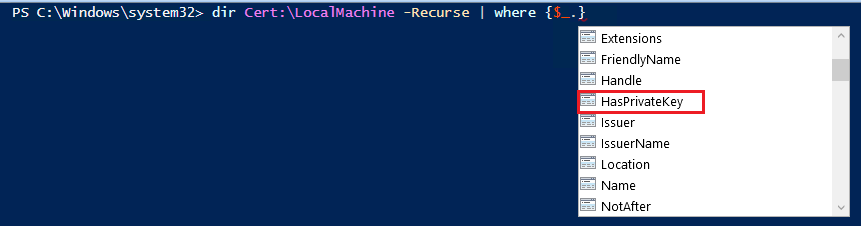
In PowerShell ISE you can get the path prediction to display your options next effortlessly.
That makes it very easy to predict all of the member properties of the certificates you can use as a filter.
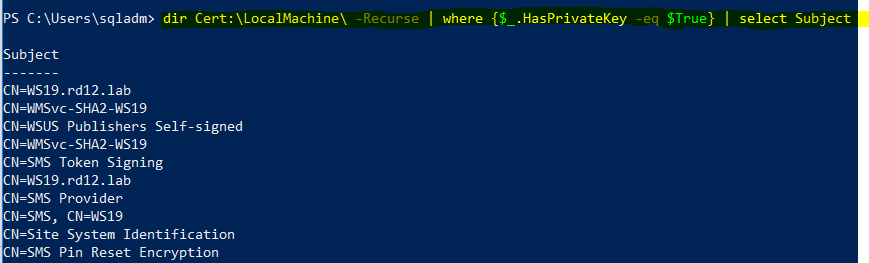
For example, let's say you're interested to get all certificates and filter them through a where clause that outputs only those that have a private key at your WSUS stores. You can make use the HasPrivateKey property, as per the below example, to get all certificates that have a private key in them:
The example output of this sample query looks similar to the following in one of my test labs:






Are you sure you want to cancel the case creation?
Are you sure you want to close this case
| Products | Region | Phone Numbers |
|---|---|---|
| FlexNet Operations FlexNet Embedded FlexNet Publisher FlexNet Connect FlexNet Code Insight InstallAnywhere InstallShield |
North America * |
+1 630-332-2513 (toll) +1 877-279-2853 (toll-free in North America) |
| Europe * |
+44 1925 944367 (toll) +44 800 047 8642 (toll-free in Europe) |
|
| Japan * | +81 3-4540-5335 (select option 2) | |
| Australia * |
+61 3 9895 2177 +61 1800 560 603 (toll-free in Australia) |
|
|
Usage Intelligence (formerly
Revulytics) Compliance Intelligence |
Please use the Case Portal to submit your support ticket or reach out to your Revenera contact. | |
Revenera Assistant



Case id: 00001065
Activity: Status change: 2 hours ago