Starting from beacon version 14.2.0, Data Platform standalone extractors can be executed on the beacon to collect data using specific loader configurations (refer to the table below). The data will be imported into IT Visibility.
Existing custom Data Platform extractors can be used with IT Visibility as long as they use loader configurations listed below. If you need to create a new custom extractor for IT Visibility, contact Flexera Services.
NOTE: BDNA_Normalize_Extractor_5.5.76_3002 supports the new security/encryption features. See the section, "Use Extractor Version 5.5.76 for Greater Security," below, for details.
Prerequisites
- You are using IT Visibility, as the data is meant to be imported into IT Visibility.
- Beacon version 14.0.2 or later.
- If you are also using IT Asset Management, you do not need to install a separate new beacon; just make sure one of your IT Asset Management beacons is upgraded to version 14.0.2 or later. Note that the extracted data will be sent to IT Visibility from IT Asset Management but will not be processed in IT Asset Management.
To start using standalone extractors on beacon
- Copy the attached BDNA_Normalize_Extractor_5.5.35_3003.zip file (at the bottom of this article) to a directory on Beacon server, e.g. C:\DPV5. Then, extract the zip file.
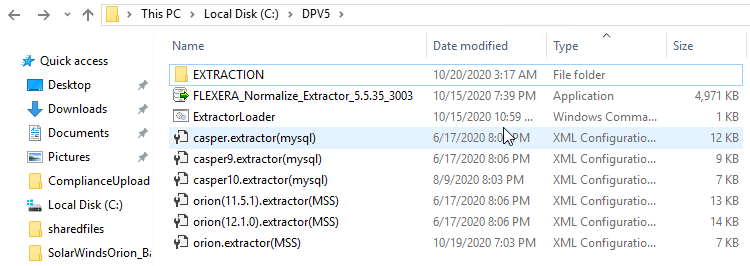
- After extracting the zip file, you will see ExtractorLoader.cmd, FLEXERA_Normalize_Extractor_XXXX.exe, and a few config files for Solarwinds Orion and JAMF Casper in the extracted files. Double-clicking FLEXERA_Normalize_Extractor_XXXX.exe will create a new folder called EXTRACTION in the same directory. In the EXTRACTION folder, you should be able to see Extractor.exe, which can be run later with a configuration file supplied.
- Create a folder with the name DataPlatformExtractor if it does not exist under the directory C:\ProgramData\Flexera Software\Beacon\IntermediateData on the Beacon server.
- Open a command line terminal and run the following command as an example. You'll need to replace the corresponding options according to your environment.
C:\DPV5\EXTRACTION\Extractor.exe -X "C:\DPV5\orion(11.5.1).extractor(MSS).config" -O "C:\ProgramData\Flexera Software\Beacon\IntermediateData\DataPlatformExtractor" -H localhost -PT 1433 -C SolarWindsOrion -U sa -P Admin123456789 -I false -F SolarWindsOrion_US.zip
Extractor Command Options and Example Values
[-X] <Xml Config file full path> ; C:\DPV5\orion(11.5.1).extractor(MSS).config
[-O] <Output file path> ; C:\ProgramData\Flexera Software\Beacon\IntermediateData\DataPlatformExtractor
[-F] <Output file name> ; SolarWindsOrion_US.zip
[-H] <Database host name> ; localhost
[-PT] <Database port> ; 1433
[-C] <Database Catalog name> ; SolarWindsOrion
[-U] <Database user name> ; sa
[-P] <Database user password> ; Admin123456789
[-I] <Database Windows Authentication> ; true or false
For the other Extractor options, run the command Extractor.exe -?.
- Choose the correct config file to read data from your source. This is a mapping between their versions and the corresponding config file you should use in the command line.
| Solarwinds Orion (11.5.1,12.0,12.1) (MSS) | orion(11.5.1).extractor(MSS).config |
| Solarwinds Orion (12.1) (MSS) | orion(12.1.0).extractor(MSS).config |
| JAMF Casper (earlier than version 9) | casper.extractor(mysql).config |
| JAMF Casper 9 | casper9.extractor(mysql).config |
| JAMF Casper 10 | casper10.extractor(mysql).config |
|
ASG Trackbird
|
trackbird.extractor(MSS).config,
trackbird.extractor(ORA).config
|
|
BDNA Discover
|
discover.extractor(ORA).config
|
|
BMC BladeLogic
|
bladelogic(8.8).extractor(ORA).config,
bladelogic.extractor(ORA).config,
bladelogic.schema_name.extractor(ORA).config
|
|
CA IT Client Manager (ITCM)
|
itcm.extractor(MSS).config
|
|
CiscoWorks LAN Management Solution (LMS)
|
ciscoworks.extractor(SQA).config
|
|
HP Network Automation
|
hpna.extractor(ORA).config
|
|
LANDesk
|
landesk.extractor(MSS).config,
landesk.extractor(ORA).config,
landesk.schema_name.extractor(ORA).config
|
|
Lansweeper
|
lansweeper.extractor(MSS).config,
lansweeper5.extractor(MSS).config,
lansweeper6.extractor(MSS).config
|
|
Novell ZENworks
|
zenworks.extractor(MSS).config
|
|
OCS
|
ocs.full.extractor(mysql).config
|
|
Scalable
|
scalable.extractor.config
|
|
HP Discovery and Dependency Mapping Advanced (DDMa)
|
hpddma.extractor(MSSQL).config,
hpddma.extractor(ORA).config,
hpddma.schema_name.extractor(ORA).config
|
|
IBM TCM
|
tivoli.tcm.extractor(MSS).config,
tivoli.tcm.extractor(ORA).config
|
|
IBM Tivoli Application Dependency Discovery Manager
|
taddm.extractor(DB2)(9.5)(L2INTRFC).config,
taddm.extractor(DB2).config
|
|
IBM Tivoli Asset Discovery for Distributed
|
tad4d.extractor(DB2)(7.5).config,
tad4d.extractor(DB2).config
|
|
IBM Tivoli Asset Discovery for z/OS
|
tad4z.extractor(DB2).config
|
|
Microsoft Assessment and Planning Toolkit (MAP) 7
|
map.full.extractor.config
|
|
Microsoft Assessment and Planning Toolkit (MAP) 8
|
map8.extractor(MSS).config
|
|
Radia Client Automation Enterprise
|
radia.extractor(MSSQL).config
|
|
Lakeside SysTrack
|
systrack.extractor(MSS).config
|
- Use a unique name for the output file name for each of the individual connections. The output file name will be used as a unique identifier in IT visibility and as the connection name, which will be visible on FlexeraOne IT Visibility UI.
- The output file path must be C:\ProgramData\Flexera Software\Beacon\IntermediateData\DataPlatformExtractor. Unless your beacon is installed on a different drive then you can replace C drive with the correct one.
If the same file already exists in folder C:\ProgramData\Flexera Software\Beacon\IntermediateData\DataPlatformExtractor, it will overwrite it next time when generating the new one.
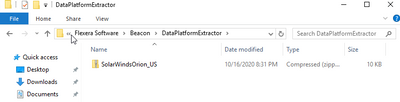
If you cannot see the generated zip file, please review the command options you used or see more details in the log folder. e.g. C:\DPV5\log\normalize.txt.

- Once the above command executes successfully and you can see the generated zip file in C:\ProgramDataFlexera SoftwareBeaconIntermediateDataDataPlatformExtractor, use Windows Task Scheduler to schedule each of your individual extractor calls. In Windows Task Scheduler, you can create a task that runs regularly, for example, daily or weekly.
On the Action tab, specify the full path of Extractor.exe for Program/script. For Add arguments (optional), enter the command options you used in step five.
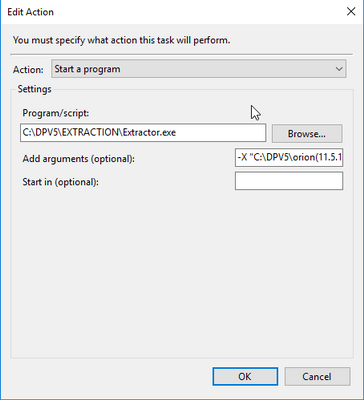
- Once the scheduled task is created, it will generate the zip file in C:\ProgramData\Flexera Software\Beacon\IntermediateData\DataPlatformExtractor regularly based on the trigger you set in the scheduled task.
NOTE: If you have multiple connections to several data sources, create a scheduled task for each connection. Leave enough time between them for one to finish before the next one starts to run.
- Each time the scheduled task Upload third-party inventory data runs, it will upload any zip files within C:\ProgramData\Flexera Software\Beacon\IntermediateData\DataPlatformExtractor folder to C:\ProgramData\Flexera Software\Beacon\IntermediateData\Upload.
Any error during the upload of the file will be moved to the Error folder C:\ProgramData\Flexera Software\Beacon\IntermediateData\DataPlatformExtractor\Error.
It will only keep the latest error zip file per connection. Upload third-party inventory data is defaulted to run every ten minutes. If the Data Platform extractor is scheduled to run more often than ten minutes, only the latest zip file within the ten minutes will be uploaded.
Use Extractor version 5.5.76 for greater security
Version 5.5.76 of the standalone extractor includes new security and encryption functionality. Formerly, the command-line tool required all the configuration options to be included as command-line options. Some of these options could potentially include sensitive data. With this release, customers have the option to create an encrypted config file that includes the configuration settings to use with the extractor. This config file can be passed as the lone command-line argument keeping all the data that would formerly have appeared on the command line secure.
New command-line options to create the encrypted config file
-S Saves a secure (encrypted) copy of the configuration filename you specify with the -X command-line option. The secure config file will have .edf appended to the filename. For example, if you pass a config filename of sccm.extractor.config, the resulting secure config file's filename will be sccm.extractor.config.edf.
Creating a secure config file
To use the extractor to create a secure config file, invoke the extractor from the command line using the -S option along with all the other command-line options you would typically use to obtain data from your selected data source. The -S option captures all other command-line options, as well as the chosen schema file content, and saves it to an encrypted config file.
Example: Entering the following on the command line...
Extractor.exe -S -X "sccm.extractor.config" -O "MyOutDir" -H qslserver\sqlinstance -PT 1433 -C schemaname -U username -P password -I false -F MyOutFile.zip
...creates a new file named sccm.extractor.config.edf.
Using a secure config file
To use an encrypted config file you previously created with the -S option, simply invoke the extractor on the command line and pass it the name of the encrypted config file you want to use.
Example: Extractor.exe "sccm.extractor.config.edf"










Case id: 00001065
Activity: Status change: 2 hours ago