

- Login to the Azure EA portal to get your Billing API key, Expiry and Enrollment ID.
Note: Make sure to click Expand Key and copy all lines for the key. Snow recommends copying the key into a text file before entering it into Snow Cloud Cost. Doing so makes sure you have no trailing or leading spaces, and that no characters are being altered by the clipboard.
- Click your username in the top right of the Snow Cloud Cost interface and select Account and then Cloud Accounts. Choose Microsoft Azure.
- Choose EA and click Next.
- Enter the information you collected in Step 1, adding a Display Account Name if you want a friendlier name for the account to appear in Snow Cloud Cost. Click Save.
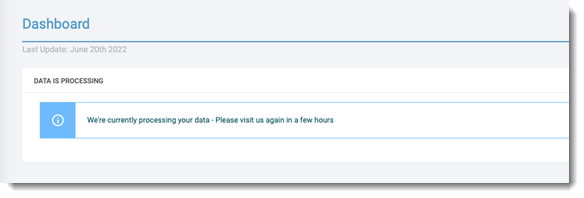
The initial synchronization of data between Azure and Snow Cloud Cost can take up to 24 hours. Until the synchronization has completed, you will see the following in the UI:
Was this helpful?






0/255
Upload Attachment
File Upload
Maximum file
size allowed is 3 MB.
Supported file types:
Documents (.txt, .doc, .docx, .pdf), Images (.jpg, .png), Comma Separated Files
(.csv) Speadsheets (.xlsx, .xls)
Are you sure you want to cancel the case creation?
Case closed successfully
File Upload
Maximum file size allowed is 3 MB.
Supported file types:
Documents (.txt, .doc, .docx, .pdf), Images (.jpg, .png), Comma Separated Files
(.csv) Speadsheets (.xlsx, .xls)
Are you sure you want to close this case
| Products | Region | Phone Numbers |
|---|---|---|
| FlexNet Operations FlexNet Embedded FlexNet Publisher FlexNet Connect FlexNet Code Insight InstallAnywhere InstallShield |
North America * |
+1 630-332-2513 (toll) +1 877-279-2853 (toll-free in North America) |
| Europe * |
+44 1925 944367 (toll) +44 800 047 8642 (toll-free in Europe) |
|
| Japan * | +81 3-4540-5335 (select option 2) | |
| Australia * |
+61 3 9895 2177 +61 1800 560 603 (toll-free in Australia) |
|
|
Usage Intelligence (formerly
Revulytics) Compliance Intelligence |
Please use the Case Portal to submit your support ticket or reach out to your Revenera contact. | |
File Upload
Maximum file
size allowed is 3 MB.
Supported file types:
Documents (.txt, .doc, .docx, .pdf), Images (.jpg, .png), Comma Separated Files
(.csv) Speadsheets (.xlsx, .xls)
Revenera Assistant



Case id: 00001065
Activity: Status change: 2 hours ago