

Summary
This article explains the recommended steps to issue log files with the SVM Agent in the command-line interface of Windows, or Linux and Mac terminals. The SVM Agent supports great set of configuration parameters that make it integrate seamlessly and in a stellar manner at all types of networks.
Synopsis
Running manual scans with the Software Vulnerability Agent in command-line or a terminal of any kind can be required in many scenarios, for example:
- There is a technical problem and you need to collect log file data that can be sent to Support.
- Some software did not appear in the scan results and you need a log file to show if it is ever found.
- Networking issues arise and you need collected connection information to troubleshoot access.
You must run the command-line with Administrative account, else the Agent might be blocked by UAC.
When you run the agent like that, Windows uses the permissions of the account that ran CMD.
Command-line interactions do never capture the LocalSystem context, and cannot test against it.
Run the following command to obtain a basic scan log file.
csia.exe -c -d "C:\temp\agentdebug.log" -v
Run the following command to obtain basic scan log file, just differently.
csia.exe -c -v > "C:\temp\agentdebug.log"
Both of the following will work too. Each `-v` parameter (max=3) adds more verbose.
csia.exe -c -v -v > "C:\temp\agentdebug.log"
csia.exe -c -d "C:\temp\agentdebug.log" -v -v -v
To see all switches available use the following command: 'csia.exe -h'. Basically the -d and the -v is added to the last command line instruction in the script.
Agent Installation Logging when deploying with WSUS/SCCM
Go to Patching/Agent Deployment and click "Create Agent Deployment Package".
At step 2, scroll down to the location shown in the below screenshot:
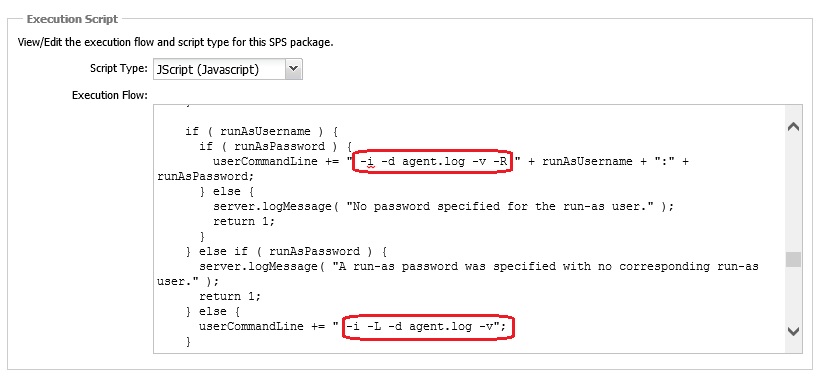
If a Run-as-User has been specified at the top of the script you must use the top example (-i -R ), if not the bottom example must be used (-i -L).
The log file name can include a location, i.e. C:\SecuniaLogs\agentlog.txt, or just agentlog.txt. If you don't set a location, it will be saved in the default Agent package installation directory. SVM Agent installs at C:\Program Files (x86)\Flexera Software\Corporate Software Inspector Agent folder.
All Agents installed with the package will create registry keys needed to generate a log file every time it performs a scan and even when it checks-in with its master server. This can be useful when you need to see what happens during installation on many hosts and you don't have time to be doing it manually.
Related KB Articles
Full list of Agent Parameters
SVM Agent Deployment Logic - Avoid Proxy Blocking - Community
Agent Package Deployment
Uninstall Agent via WSUS/SCCM Deployment
Troubleshoot Certificate Revocation Problems
Additional Information (SVM Next)
The information in this KB relates primarily to SVM 2019 solution, but the parameters and approach of command-line interaction are the same and SVM Next users should feel free to download their agents from their interfaces and use this article to the best of their advantage.






Are you sure you want to cancel the case creation?
Are you sure you want to close this case
| Products | Region | Phone Numbers |
|---|---|---|
| FlexNet Operations FlexNet Embedded FlexNet Publisher FlexNet Connect FlexNet Code Insight InstallAnywhere InstallShield |
North America * |
+1 630-332-2513 (toll) +1 877-279-2853 (toll-free in North America) |
| Europe * |
+44 1925 944367 (toll) +44 800 047 8642 (toll-free in Europe) |
|
| Japan * | +81 3-4540-5335 (select option 2) | |
| Australia * |
+61 3 9895 2177 +61 1800 560 603 (toll-free in Australia) |
|
|
Usage Intelligence (formerly
Revulytics) Compliance Intelligence |
Please use the Case Portal to submit your support ticket or reach out to your Revenera contact. | |
Revenera Assistant



Case id: 00001065
Activity: Status change: 2 hours ago