

Summary
This article provides steps for installing the KnowledgeBase workflow to an existing Operations Manager installation.
Synopsis
You want to install the new KnowledgeBase workflow to an existing Sspider Operations Manager installation.
Discussion
- First of all you need to update your Operations Manager to at least version 4.5.4
- Then (after a restart of the OM service) create a new data context:
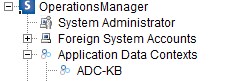
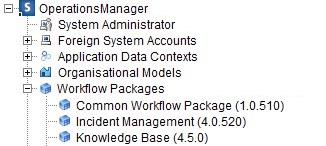
- Go to Workflow Packages and add the Knowledge Base module ch.bw.wf.kb-4.5.0.wfp (you will find the package at the following location: .\OperationsManager\workflow\packages)
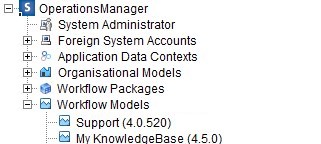
- Go to Workflow Models and add a new Model using the KB workflow package and the data context you have been creating
- If you have already a Incident license, replace the license ch.bw.workflow.support.license (you will find the license at the following location: .\OperationsManager\workflow\licenses) with the new one you have been receiving or put your newly received license into this folder.
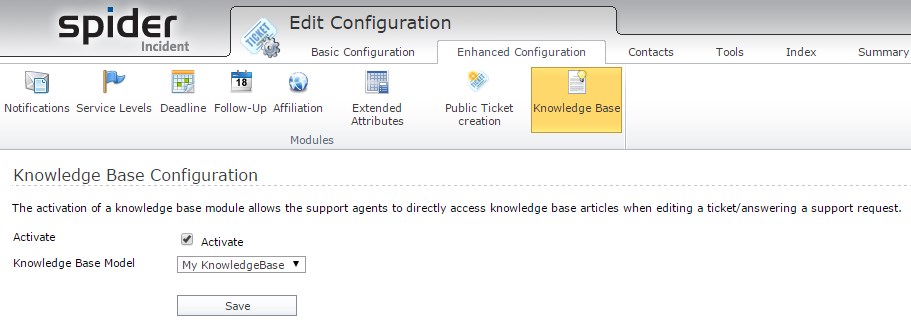
- Log into the Incident Web App and goto Configuration > Enhanced Configuration and activate your newly created KnowledgeBase by ticking the Activate check box and Save the configuration
Products
OPM4
Was this helpful?






0/255
Upload Attachment
File Upload
Maximum file
size allowed is 3 MB.
Supported file types:
Documents (.txt, .doc, .docx, .pdf), Images (.jpg, .png), Comma Separated Files
(.csv) Speadsheets (.xlsx, .xls)
Are you sure you want to cancel the case creation?
Case closed successfully
File Upload
Maximum file size allowed is 3 MB.
Supported file types:
Documents (.txt, .doc, .docx, .pdf), Images (.jpg, .png), Comma Separated Files
(.csv) Speadsheets (.xlsx, .xls)
Are you sure you want to close this case
| Products | Region | Phone Numbers |
|---|---|---|
| FlexNet Operations FlexNet Embedded FlexNet Publisher FlexNet Connect FlexNet Code Insight InstallAnywhere InstallShield |
North America * |
+1 630-332-2513 (toll) +1 877-279-2853 (toll-free in North America) |
| Europe * |
+44 1925 944367 (toll) +44 800 047 8642 (toll-free in Europe) |
|
| Japan * | +81 3-4540-5335 (select option 2) | |
| Australia * |
+61 3 9895 2177 +61 1800 560 603 (toll-free in Australia) |
|
|
Usage Intelligence (formerly
Revulytics) Compliance Intelligence |
Please use the Case Portal to submit your support ticket or reach out to your Revenera contact. | |
File Upload
Maximum file
size allowed is 3 MB.
Supported file types:
Documents (.txt, .doc, .docx, .pdf), Images (.jpg, .png), Comma Separated Files
(.csv) Speadsheets (.xlsx, .xls)
Revenera Assistant



Case id: 00001065
Activity: Status change: 2 hours ago