

Summary
This article explains how to configure Operations Manager SSL Keys to overcome a secure connection failure when accessing Spider Operations Manager.
Synopsis
You are experiencing a secure connection failure when accessing Spider Operations Manager (Incident/KB/Change).
Discussion
To overcome this problem on server side please follow these steps:
- Login to the GlassFish Administration Console
http://<YourOMServerName>:8048
with username admin and the password you have been choosing upon OM installation (default: brainwaregroup)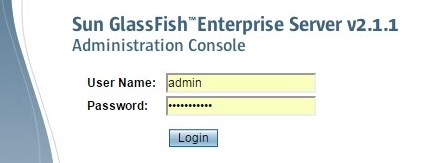
- Navigate in tree to:
Configuration > HTTP Service > HTTP Listeners > om_ssl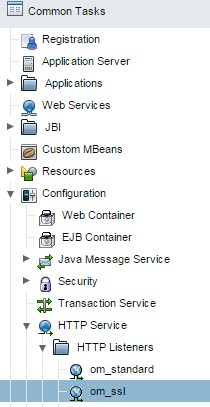
- Choose tab SSL
- Add all four Available Common Ciphersuites to the selected ones
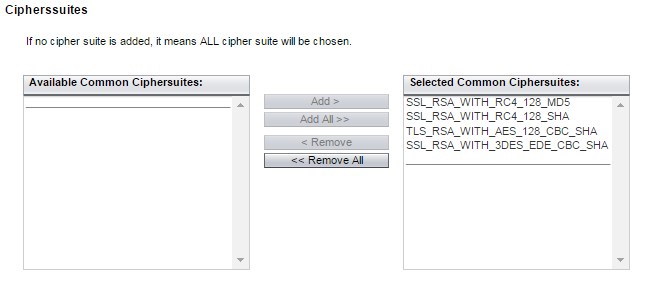
- Save this configuration by clicking on the Save button
- Restart Operations Manager services
Products
OM4
Was this helpful?






0/255
Upload Attachment
File Upload
Maximum file
size allowed is 3 MB.
Supported file types:
Documents (.txt, .doc, .docx, .pdf), Images (.jpg, .png), Comma Separated Files
(.csv) Speadsheets (.xlsx, .xls)
Are you sure you want to cancel the case creation?
Case closed successfully
File Upload
Maximum file size allowed is 3 MB.
Supported file types:
Documents (.txt, .doc, .docx, .pdf), Images (.jpg, .png), Comma Separated Files
(.csv) Speadsheets (.xlsx, .xls)
Are you sure you want to close this case
| Products | Region | Phone Numbers |
|---|---|---|
| FlexNet Operations FlexNet Embedded FlexNet Publisher FlexNet Connect FlexNet Code Insight InstallAnywhere InstallShield |
North America * |
+1 630-332-2513 (toll) +1 877-279-2853 (toll-free in North America) |
| Europe * |
+44 1925 944367 (toll) +44 800 047 8642 (toll-free in Europe) |
|
| Japan * | +81 3-4540-5335 (select option 2) | |
| Australia * |
+61 3 9895 2177 +61 1800 560 603 (toll-free in Australia) |
|
|
Usage Intelligence (formerly
Revulytics) Compliance Intelligence |
Please use the Case Portal to submit your support ticket or reach out to your Revenera contact. | |
File Upload
Maximum file
size allowed is 3 MB.
Supported file types:
Documents (.txt, .doc, .docx, .pdf), Images (.jpg, .png), Comma Separated Files
(.csv) Speadsheets (.xlsx, .xls)
Revenera Assistant



Case id: 00001065
Activity: Status change: 2 hours ago