

Summary
This article discusses how to set the icon next to the Add or Remove Programs or Programs and Features entry to the InstallAnywhere icon on Windows.Synopsis
This article discusses how to set the icon next to the Add or Remove Programs or Programs and Features entry to the InstallAnywhere icon on Windows.Discussion
- Create a new project.
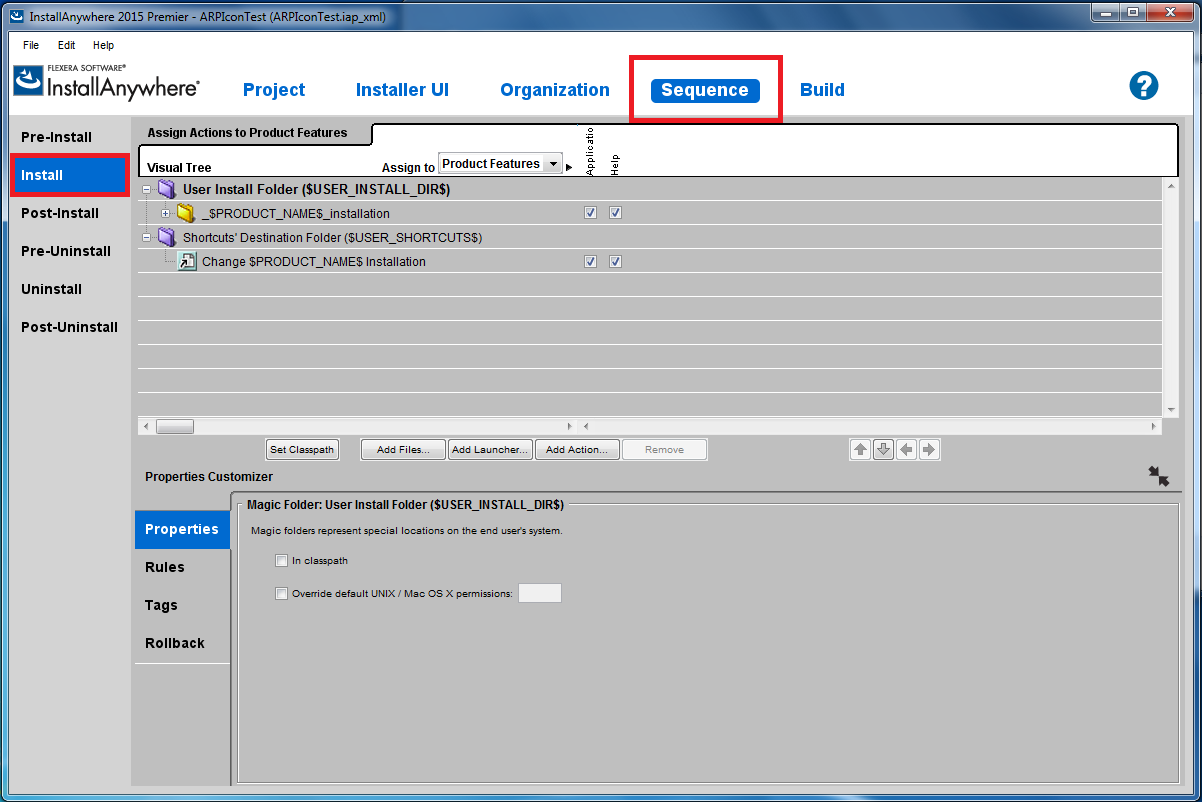
- Navigate to the Sequence > Install Sequence.
?
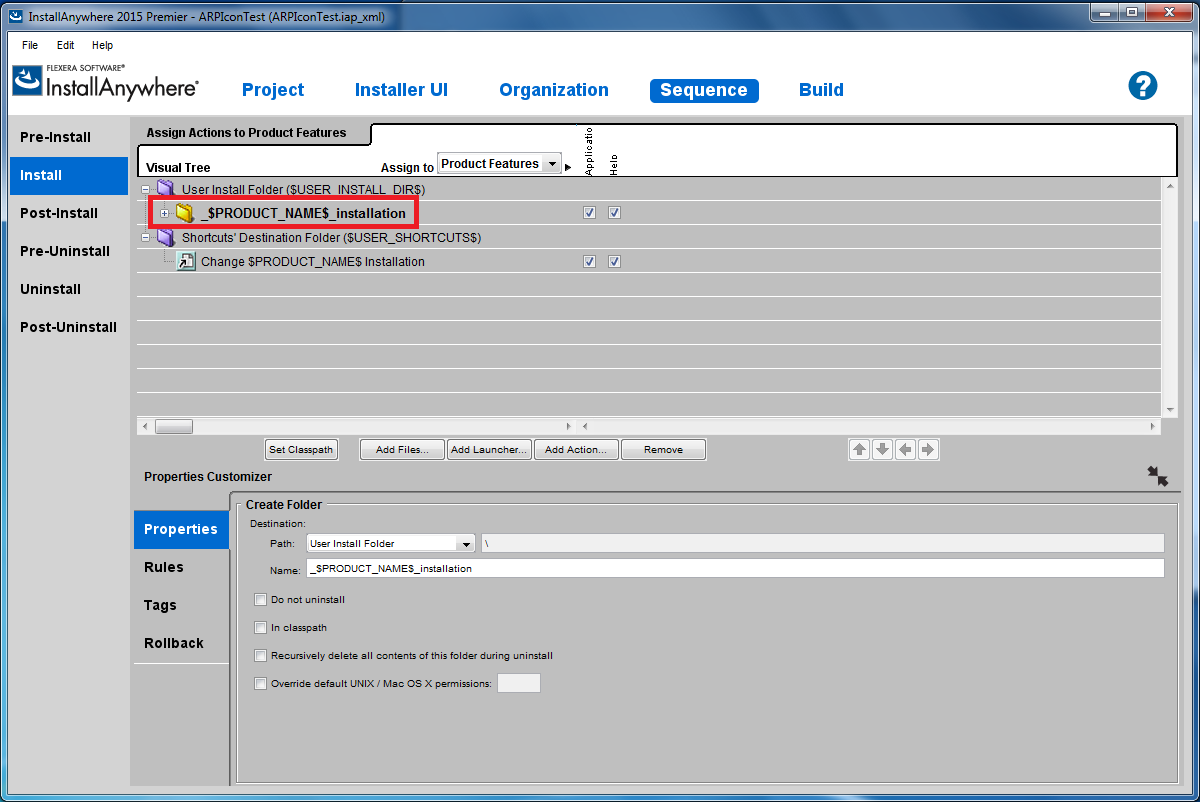
- Expand the uninstaller directory node by clicking the plus + sign.
?
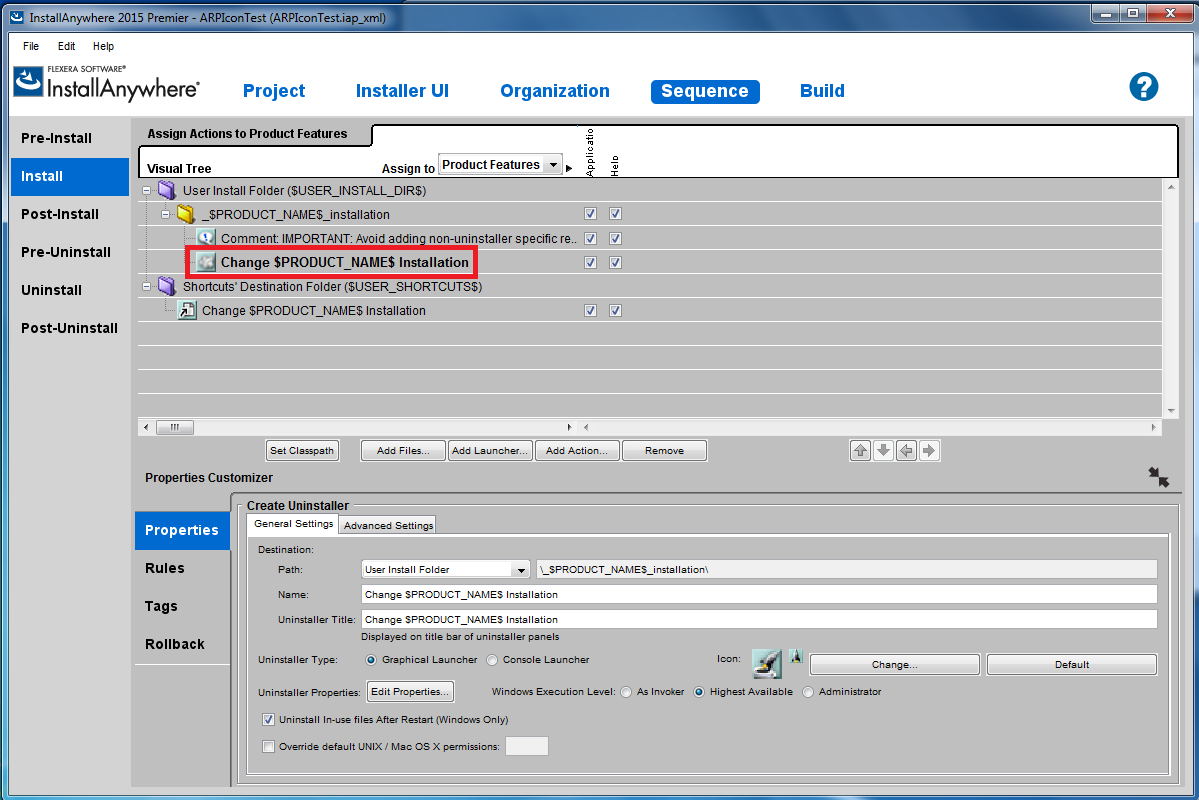
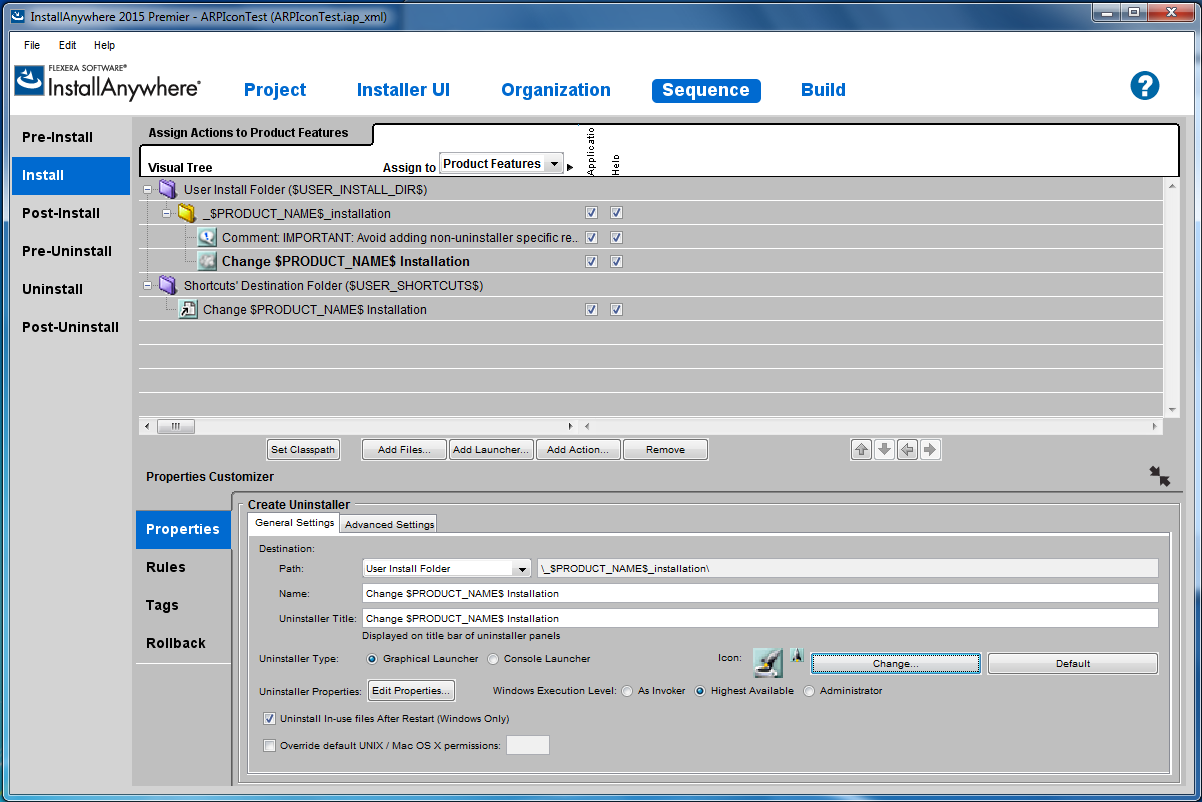
- Select the Create Uninstaller Action.
?
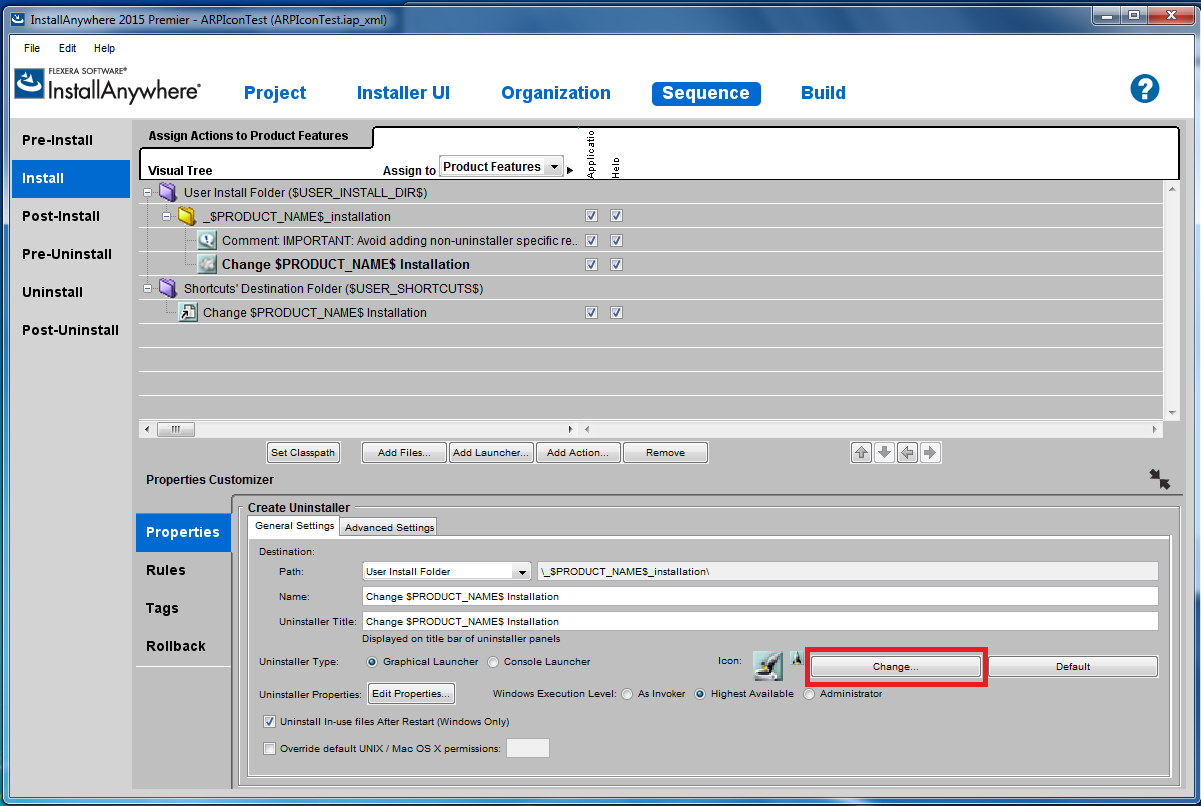
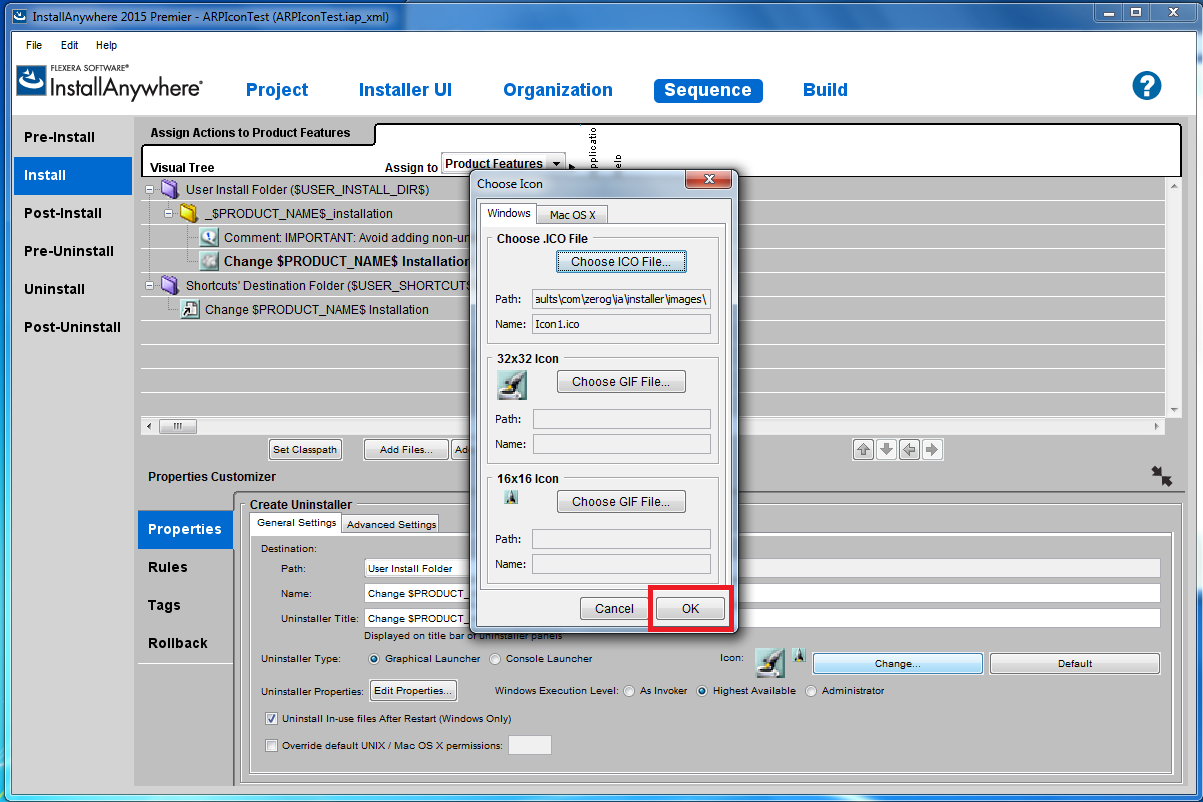
- Click the Icon > Change button.
?
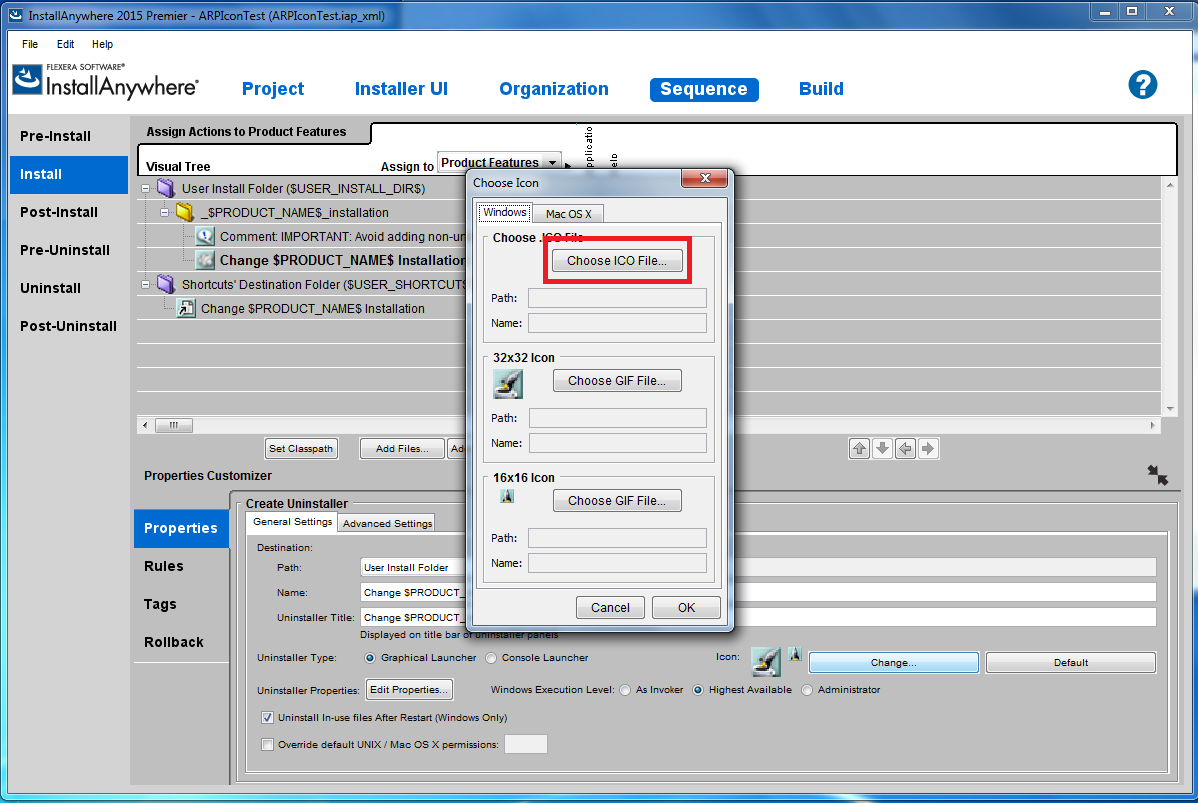
- Click the Windows > Choose ICO File button.
?
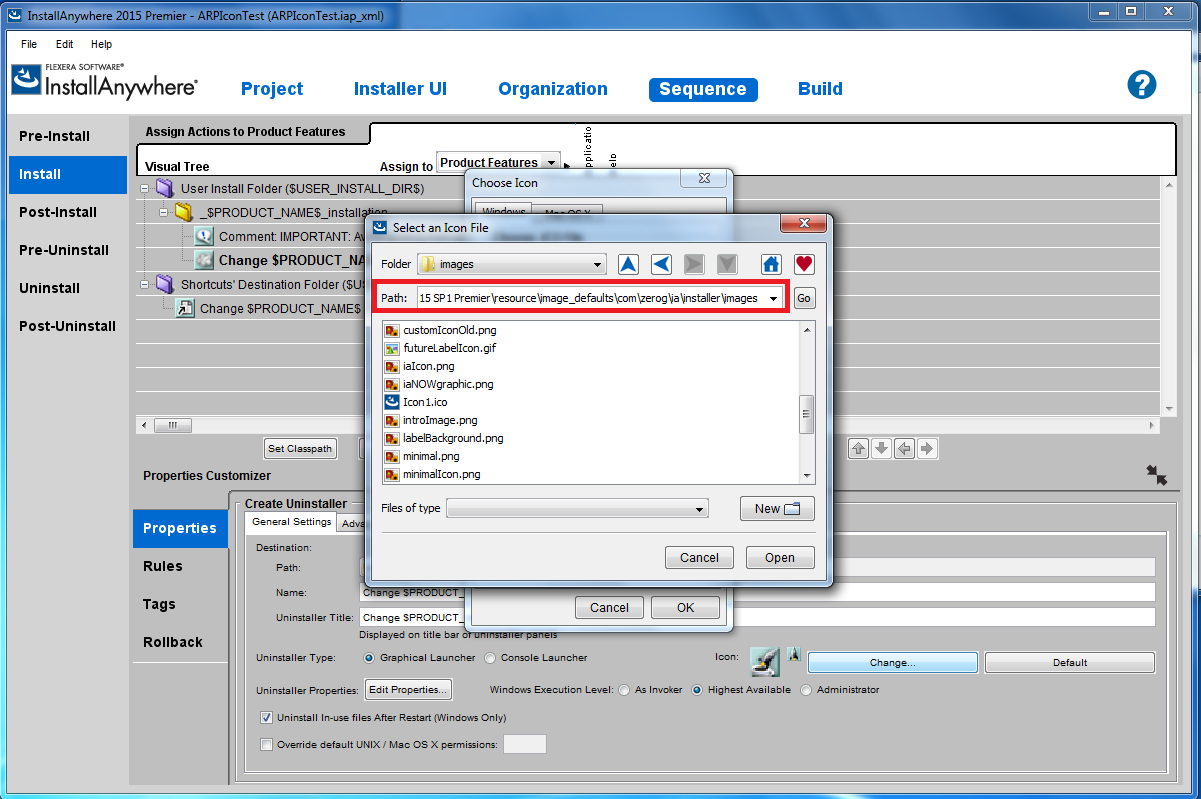
- Browse to <IA_HOME>\resource\image_defaults\com\zerog\ia\installer\images where <IA_HOME> is where InstallAnywhere is installed.
?
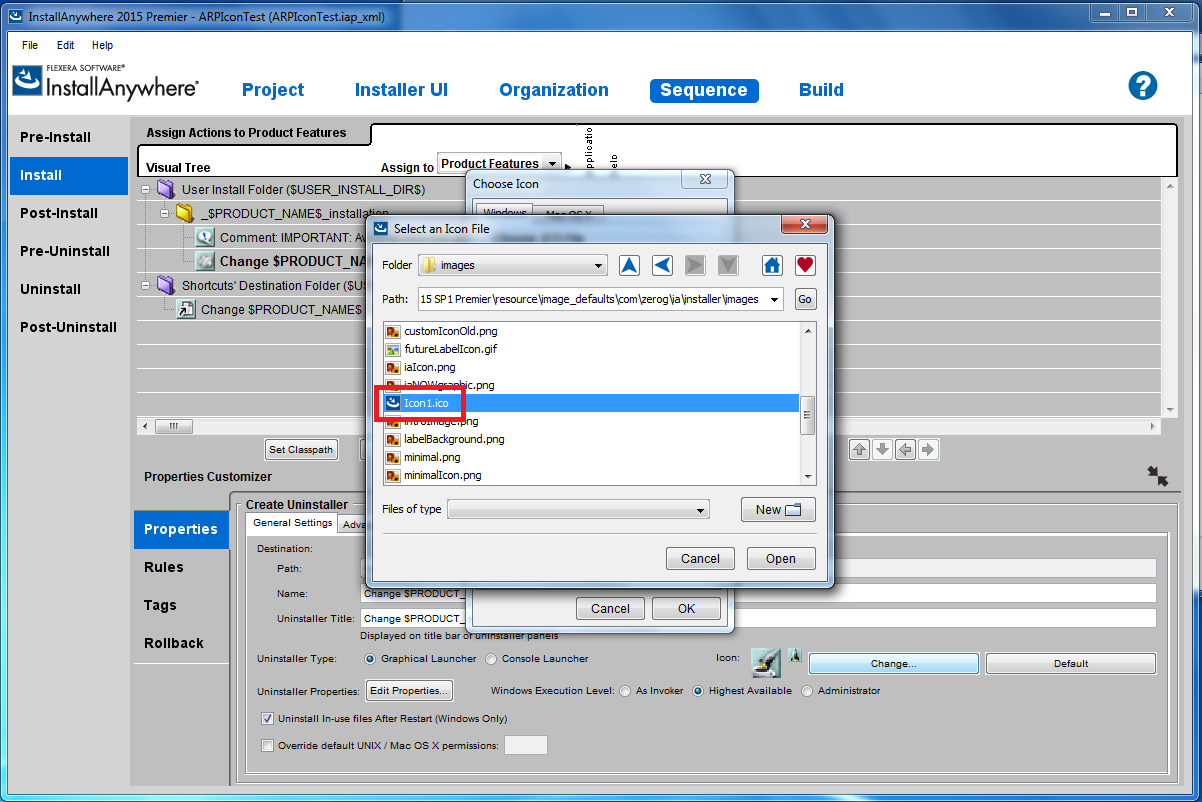
- Select the Icon1.ico file.
?
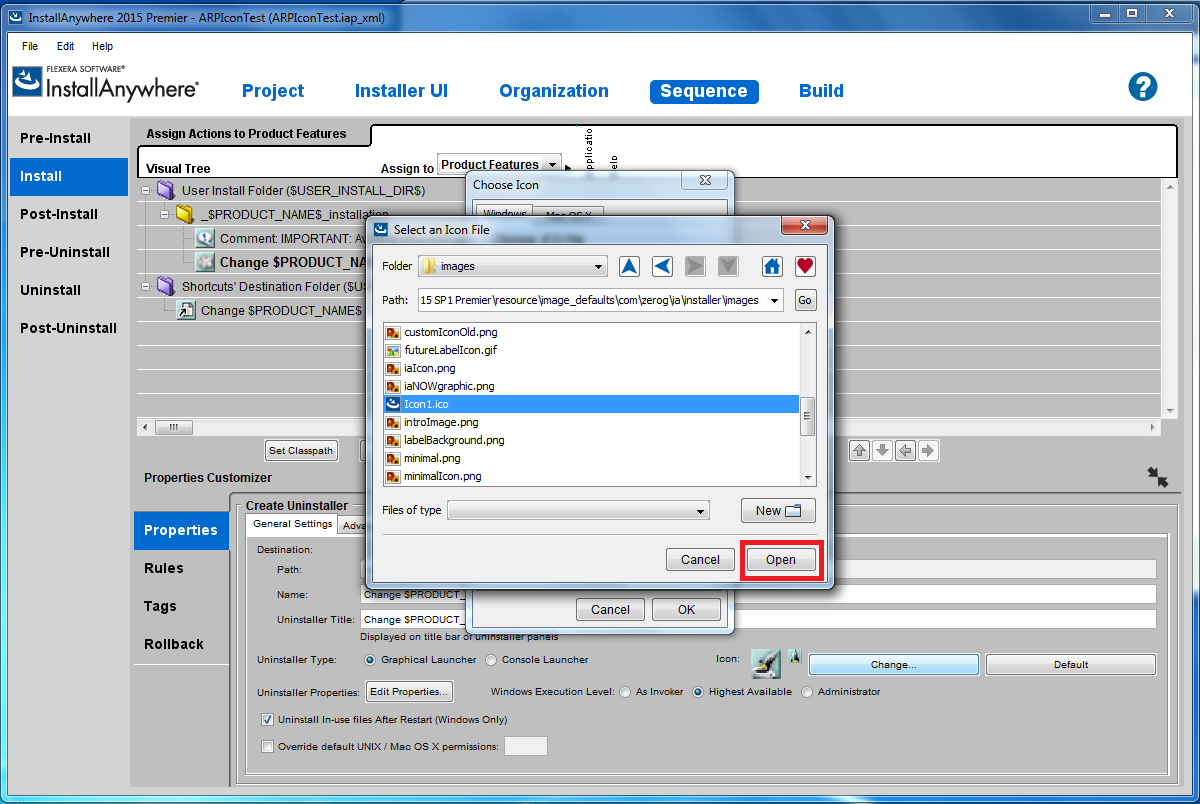
- Click the Open button.
?
- Click the OK button.
?
- Add a Without VM or With VM Windows Build Target.
- Save the project.
- Build the project.
- Run the installer on Windows.
- Complete the installation.
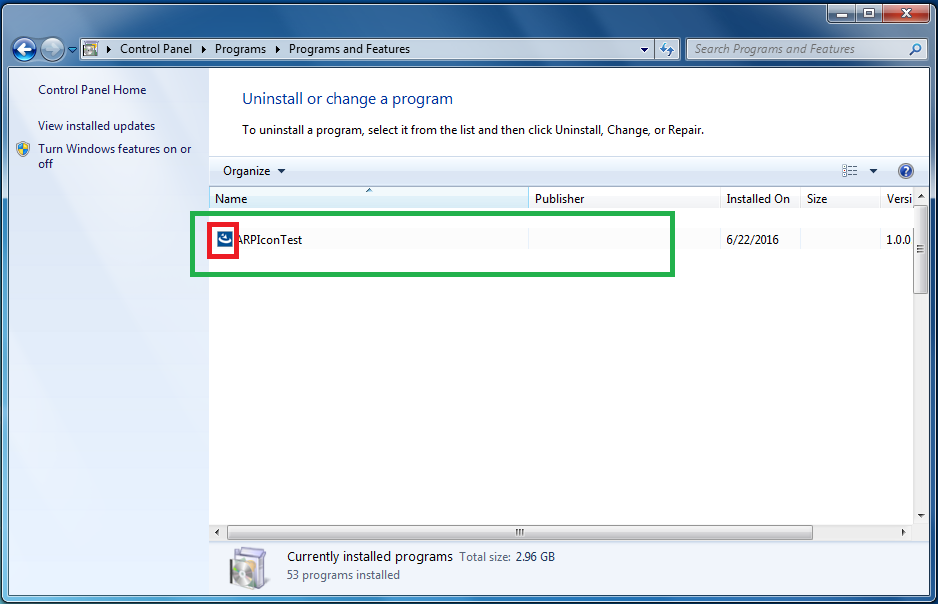
- Navigate to the Add or Remove Programs or Programs and Features entry for the installed product. The icon next to the entry should be the InstallAnywhere icon.
?
Additional Information
These instruction apply to InstallAnywhere 2013 and higher.
For more information about configuring the installer to use custom icons, please refer to the following Knowledge Base articles:
Choosing a Type of Windows Icon to Use
Configure Custom Icon To Display On Windows Taskbar During Installation
Setting Display Icon for Add/Remove Programs Entry
Custom Icons do not appear or are not being updated
Was this helpful?






0/255
Upload Attachment
File Upload
Maximum file
size allowed is 3 MB.
Supported file types:
Documents (.txt, .doc, .docx, .pdf), Images (.jpg, .png), Comma Separated Files
(.csv) Speadsheets (.xlsx, .xls)
Are you sure you want to cancel the case creation?
Case closed successfully
File Upload
Maximum file size allowed is 3 MB.
Supported file types:
Documents (.txt, .doc, .docx, .pdf), Images (.jpg, .png), Comma Separated Files
(.csv) Speadsheets (.xlsx, .xls)
Are you sure you want to close this case
| Products | Region | Phone Numbers |
|---|---|---|
| FlexNet Operations FlexNet Embedded FlexNet Publisher FlexNet Connect FlexNet Code Insight InstallAnywhere InstallShield |
North America * |
+1 630-332-2513 (toll) +1 877-279-2853 (toll-free in North America) |
| Europe * |
+44 1925 944367 (toll) +44 800 047 8642 (toll-free in Europe) |
|
| Japan * | +81 3-4540-5335 (select option 2) | |
| Australia * |
+61 3 9895 2177 +61 1800 560 603 (toll-free in Australia) |
|
|
Usage Intelligence (formerly
Revulytics) Compliance Intelligence |
Please use the Case Portal to submit your support ticket or reach out to your Revenera contact. | |
File Upload
Maximum file
size allowed is 3 MB.
Supported file types:
Documents (.txt, .doc, .docx, .pdf), Images (.jpg, .png), Comma Separated Files
(.csv) Speadsheets (.xlsx, .xls)
Revenera Assistant



Case id: 00001065
Activity: Status change: 2 hours ago